
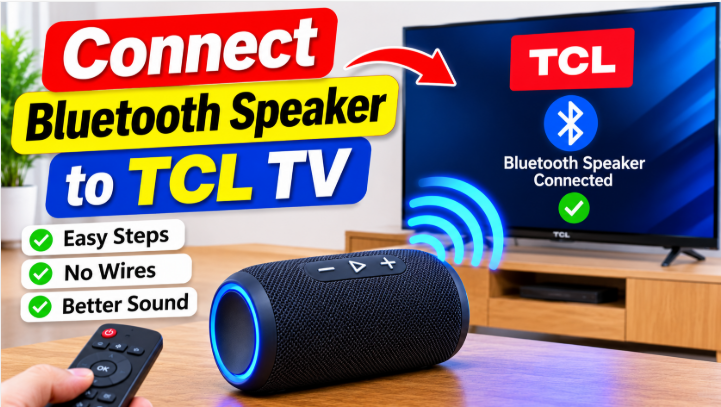
Quick answer: Here’s how to connect Bluetooth speaker to TCL TV: on a TCL Google TV, put the speaker in pairing mode, open Settings, then Remotes & Accessories, then Pair remote or accessory, and select your speaker when it appears. On a TCL Roku TV, the same direct pairing only works on selected newer models — check the Remotes & devices menu first, because many TCL Roku TVs have no Bluetooth audio at all. One device at a time, PIN 0000 if it asks.
TCL is the one TV brand that makes pairing confusing — not because it’s hard, but because TCL sells two completely different TVs under the same name. One runs Google TV, the other runs Roku TV, and the Bluetooth menu is different on each. Worse, some TCL Roku TVs have no Bluetooth audio at all, even though the box says “Bluetooth”. This guide starts with the 30-second check that tells you which TCL you own, then gives the exact pairing steps for each platform, the honest truth about the Roku limit, and the two workarounds when direct pairing isn’t possible.
How to Connect Bluetooth Speaker to TCL TV
The whole job is four moves, and they’re the same on every TCL TV that supports Bluetooth audio. First, put the speaker in pairing mode — usually by holding its Bluetooth button for 3 to 5 seconds until the light flashes. Second, open the TV’s Settings and find the Bluetooth menu. Third, select Add accessory or Pair remote or accessory to start the scan. Fourth, select your speaker when it appears in the list. If you’ve paired a speaker with a phone before, this will feel familiar — our pairing guide explains the pairing-mode part in detail. Keep the speaker within 5 metres of the TV while you pair, and make sure the speaker isn’t already connected to your phone — a speaker can only play from one device at a time. Once paired, the TV reconnects to the speaker automatically every time you turn it on.
First: Which TCL TV Do You Have?
Before you touch any menu, find out which platform your TCL runs — it decides everything that follows. Look at the home screen: if the top-right corner shows a round profile picture or initial, it’s Google TV. If the home screen shows a grid of colourful app tiles with “Roku” in the corner, it’s Roku TV. Still not sure? Check the model number: go to Home, then Settings, then System, then About. Google TV models pair Bluetooth speakers directly. Roku TV models are the tricky ones — only selected newer Roku families support direct Bluetooth audio (Roku Select Series from 2025, Plus Series, and Pro Series). If your Roku TV’s menu has no wireless-audio option, direct pairing is probably unavailable — skip to the workaround section below instead of wasting twenty minutes in the menus. Our generic TV guide covers the transmitter route that works on any TV.
How to Connect Bluetooth Speaker to TCL TV (Google TV Models)
TCL Google TV models are the easy ones — TCL says they work with Bluetooth headphones, speakers, and game controllers. Here’s the exact route, from TCL’s own support pages:
- Put the speaker in pairing mode. Turn the speaker on, then press and hold its Bluetooth button for 3 to 5 seconds until the light flashes. Turn off your phone’s Bluetooth first if the speaker keeps connecting to the phone.
- Open Settings. From the home screen, select your profile picture or initial at the top right, then choose Settings.
- Go to Remotes & Accessories, then Pair remote or accessory. This puts the TV in pairing mode and starts scanning for nearby devices. On older Android TV models the same screen is called “Add accessory”.
- Select your speaker when it appears. Tap its name in the list, then confirm Pair on the Bluetooth pairing request screen. If it asks for a PIN, try 0000.
- Check the sound comes out of the speaker. Play something on the TV. If the sound still comes from the TV speakers, go to Settings, then Display & Sound, then Audio output, and select the Bluetooth device as the output.
Two limits to know. First, only one Bluetooth audio device can be connected at a time — you can pair several accessories, but only one audio device plays. If you connect a second one, the first disconnects automatically. Second, Bluetooth audio lags a little behind the picture — typically 100 to 200 milliseconds. Our codecs guide explains why, and our sound-delay guide covers the delay in detail. If the lag bothers you, a speaker with aptX Low Latency support cuts it to 32 to 40 milliseconds.
TCL Roku TV: The Honest Truth About Bluetooth
Here’s where most guides get it wrong: they give one set of steps and pretend every TCL Roku TV has Bluetooth audio. It doesn’t. Roku’s own documentation says direct Bluetooth Headphone Mode applies only to selected Roku devices and Roku-branded TV families — Roku Select Series HD and 4K TVs from 2025, Plus Series, and Pro Series. That list should not be treated as a guarantee that every TCL Roku TV supports every Bluetooth speaker. So check first: press Home, open Settings, then select Remotes & devices. If you see an option like Wireless headphones or Bluetooth devices, your model supports it. If no wireless-audio option appears, direct pairing is probably unavailable — don’t keep hunting for it. On a compatible model, the path is: Home, then Settings, then Remotes & devices, then Wireless headphones, then Add new wireless headphones. Put the speaker in pairing mode first, wait up to about 30 seconds for the scan, then select the speaker when it appears. Our Roku guide covers the Roku platform in detail. One more Roku quirk: Roku Wireless Speakers are a proprietary Roku solution, not ordinary Bluetooth speakers — don’t buy those expecting them to work with anything else.
No Bluetooth? The Transmitter and Private Listening Routes
If your TCL Roku TV has no Bluetooth audio menu, you still have two ways to get wireless sound — and both work on any TCL TV, Google TV or Roku.
Route 1: A Bluetooth transmitter. Plug a small transmitter into the TV’s headphone jack or optical output, pair the speaker to the transmitter, and the TV’s audio goes wireless. It costs about $15 to $25, and it works on every TCL model because it doesn’t use the TV’s Bluetooth at all. This is also the fix if your Google TV pairs but the sound lags — a transmitter with aptX Low Latency cuts the delay to 32 to 40 milliseconds.
Route 2: Private Listening through the Roku app. If your TCL runs Roku TV, download the Roku mobile app on your phone, connect the phone to the same Wi-Fi network as the TV, tap the Remote tab, then tap the Headphones icon to enable Private Listening. Then pair your Bluetooth speaker to your phone — not to the TV. The TV’s audio streams to the phone over Wi-Fi, and the phone sends it to the speaker over Bluetooth. The sound quality depends on your Wi-Fi, but it works on every Roku TV, even the ones with no Bluetooth at all.
If you’re choosing between a speaker and a soundbar for the TV, a soundbar connects over HDMI ARC or optical and has no Bluetooth delay at all — our speaker vs soundbar comparison explains the difference. But for a portable speaker you already own, the transmitter or Private Listening gets you there for the price of a takeaway.
When It Won’t Pair or the Sound Lags
If the speaker doesn’t appear in the TV’s list, work through these in order — the first two fix most cases:
- The speaker is still connected to your phone. A speaker paired to a phone grabs the phone first and ignores the TV. Turn off your phone’s Bluetooth, put the speaker back in pairing mode, and scan again from the TV.
- Too many paired devices are confusing the TV. TCL lists unused paired devices as a source of conflicts. On a Google TV, go to Settings, then Remotes & Accessories, and forget the devices you don’t use. On a Roku TV, go to Settings, then Remotes & devices, and remove the old ones.
- The TV needs a restart. A frozen Bluetooth stack on the TV blocks the scan. Restart the TV from its settings menu, then try pairing again from a cold start.
The Last Three Fixes
- The lips don’t match the sound. Bluetooth audio lags 100 to 200 milliseconds behind the picture on most TCL models. There’s no A/V sync slider on TCL like Sony has — the fix is a speaker with aptX Low Latency support, or a wired connection for films where the delay bothers you. Our sound-delay guide explains the delay in detail.
- The sound keeps cutting out. The speaker is paired but the audio stutters. Move the speaker closer to the TV — within 5 metres — and keep it away from the Wi-Fi router, which crowds the same 2.4 GHz band. Our cutting-out guide covers the interference causes in detail.
- The TV paired but stays silent. On a Roku TV, open Home, then Settings, then Audio, and check the audio output is set to the Bluetooth or external-audio option. On a Google TV, check Settings, then Display & Sound, then Audio output, and select the Bluetooth device.
The Bottom Line
The bottom line is simple: check which TCL you own first — Google TV pairs directly through Remotes & Accessories, then Pair remote or accessory, with PIN 0000 if it asks. Roku TV only pairs directly on selected newer models, so check the Remotes & devices menu before you start. If there’s no Bluetooth audio at all, a $15 transmitter or the Roku app’s Private Listening gets you the same wireless sound. And if you’re picking a speaker for the TV, our buying guide lists sound quality and battery life as two of the 7 checks — and our best outdoor party speaker guide rounds up the portable picks if you’re shopping.
FAQs: How to Connect Bluetooth Speaker to TCL TV
How to connect Bluetooth speaker to TCL TV?
On a TCL Google TV, put the speaker in pairing mode, open Settings, then Remotes & Accessories, then Pair remote or accessory, and select your speaker when it appears. On a TCL Roku TV, direct pairing only works on selected newer models.
Does every TCL TV have Bluetooth?
No. Most TCL Google TVs have Bluetooth audio, but TCL Roku TVs are model-specific — only selected newer Roku families support direct Bluetooth audio. If the menu has no wireless-audio option, use a transmitter or Private Listening instead.
How do I know if my TCL TV is Google TV or Roku TV?
Look at the home screen: a round profile picture at the top right means Google TV, and a grid of colourful app tiles with “Roku” means Roku TV. Or check Home, then Settings, then System, then About for the model number.
Can I connect two Bluetooth speakers to a TCL TV?
No — only one Bluetooth audio device can be connected at a time. For two speakers, pair them together first with the speaker’s own party mode, then pair one of them to the TV.
Why is there no sound from my TCL TV Bluetooth speaker?
Usually the audio output is still set to the TV speakers. On a Google TV, go to Settings, then Display & Sound, then Audio output, and select the Bluetooth device. On a Roku TV, check Home, then Settings, then Audio.
How do I fix Bluetooth audio delay on a TCL TV?
TCL has no A/V sync slider like Sony, so the fix is a speaker with aptX Low Latency support (32 to 40 milliseconds) or a wired connection for films where the delay bothers you.