
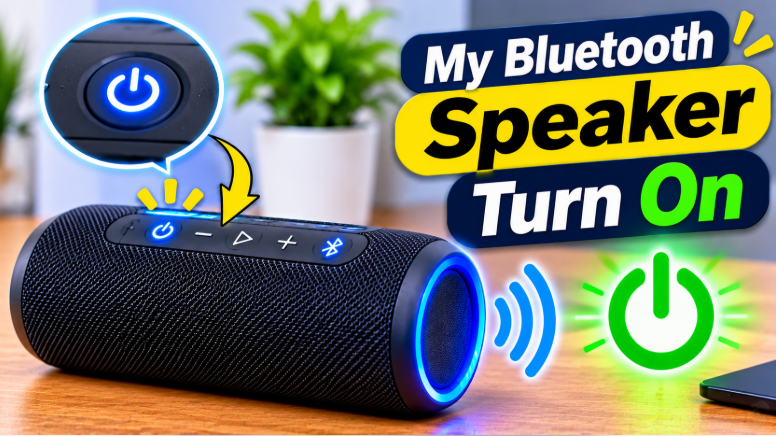
Quick answer If you are asking why won’t my Bluetooth speaker turn on, the most common answer is a flat or deeply discharged battery — plug the speaker into a wall adapter with a cable you know works, leave it charging for at least 30 minutes without touching it, and then hold the power button for a full three seconds. If there is still no light and no sound, swap the cable and adapter, clean the charging port, and only then try a reset. A speaker that shows no charging light after all of that, or that swells, smells, or gets hot, should go to the manufacturer or warranty support, not to another charger.
That order matters. Readers often reset first and charge last, which wastes time: a reset cannot fix an empty battery, and a firmware update cannot run on a speaker with no power at all. The fixes below go from the most common cause to the least common one, so stop as soon as your speaker wakes up.
You press the power button. Nothing. No light, no sound, no pairing tone. Before you decide the speaker is dead, work through this guide in order — most speakers that will not turn on are not broken at all. They are deeply discharged, charging through a faulty cable, or stuck in a frozen power state, and each of those has a fix you can do at home in minutes.
A speaker that will not turn on is usually a charging problem first. Start with power, not with a replacement.
Start with the 2-minute check
Plug the speaker in and watch it for two minutes before you press anything else. What the charging light does in those two minutes tells you where the problem most likely is, and it saves you from trying every fix at random.
- A charging light comes on and stays on. Power is reaching the speaker. The battery was probably just flat — leave it charging and go to Fix 1.
- A light flashes, then goes out. Charging is starting and stopping. Suspect the cable, the adapter or the port — go to Fixes 2 and 3.
- No light at all, ever. Power may not be reaching the speaker at all, or the battery is deeply discharged. Start at Fix 1, then work through Fixes 2 and 3.
- The speaker turns on while plugged in, but dies when unplugged. It is taking power but not holding it. That points to a worn-out battery — see Fix 8.
- It worked yesterday and stopped suddenly, with charge left. Think frozen power state, a stuck button, or moisture — see Fixes 4, 5 and 6.
Also note what changed. A new cable, a fall, a pool session, or three months in a drawer are all clues. A speaker left unused for months is the classic deep-discharge case, and it behaves very differently from a speaker that was dropped yesterday.
What you see, what it usually means
| What you see | Likely cause | First fix to try |
| No light, no sound, nothing | Deeply discharged battery | Fix 1: long, uninterrupted charge |
| Charging light flashes then stops | Faulty cable or weak adapter | Fix 2: swap cable, adapter, outlet |
| Light on, but port feels loose | Lint or debris in the port | Fix 3: clean the port safely |
| Button feels soft, stuck or unresponsive | Stuck button, dirt, or a lock mode | Fix 4: button and lock check |
| Dead after swimming, rain or a spill | Moisture inside the speaker | Fix 5: dry it out, do not charge it wet |
| Turns on, freezes, or dies at random | Frozen software / power state | Fix 6: reset for your exact model |
| On when plugged in, dead when unplugged | Battery at end of life | Fix 8: battery signs and next step |
Fix 1: Charge it properly — the deep-discharge trick
A lithium battery that has run completely flat, especially one left flat in a drawer for weeks or months, can drop so low that the speaker shows no sign of life at first. The charging light may stay off for a while even though charging has actually begun. Plugging in for two minutes, seeing nothing, and unplugging again is the single most common reason this fix gets written off as not working.
- Use a wall adapter, not a laptop USB port or a power bank. A wall adapter gives the speaker the steady power it needs to wake a deeply discharged battery.
- Use the cable that came with the speaker if you still have it, or a cable you used successfully in the last few days on another device.
- Plug in and leave the speaker completely alone for at least 30 minutes. Do not keep pressing the power button to check — repeated presses can interrupt the wake-up charge on some models.
- After 30 minutes, hold the power button for a full three seconds. Many speakers need a long press, and a quick tap does nothing.
- If it wakes up, leave it charging until it is full before you use it. Waking a deep-discharged battery and immediately draining it again shortens its life.
If the charging light never comes on at all — not after 30 minutes, and not with a different cable — the problem is in the charging path itself. Our guide to a Bluetooth speaker not charging works through that side of the problem step by step, and it is the right next read before you try a reset.
Fix 2: Swap the cable, adapter and outlet — one at a time
Charging gear fails far more often than speakers do. Cables break inside where you cannot see it, cheap adapters stop delivering enough power, and a single dead outlet can make a healthy speaker look faulty. The trick is to change one thing at a time, so you learn which part was actually at fault.
- Change only the cable first. Charge for 10 minutes and look for a steady charging light.
- If nothing changes, keep that cable and change only the adapter. Use an adapter that charges your phone normally.
- If it still shows nothing, move to a different wall outlet — one you have just tested with a lamp or a phone charger.
- Avoid charging from a TV, a games console or an old laptop port during this test. Those ports often supply too little power to wake a flat speaker, even when they charge a phone slowly.
If a new cable or adapter brings the light back, you have your answer and your speaker was never faulty. Throw the bad cable away rather than keeping it in the same drawer — a cable that half-works will cause this exact confusion again in a few months.
Fix 3: Clean the charging port — safely
Portable speakers live in bags, cars and pockets, and lint packs tightly into the charging port over time. The plug then sits slightly out, charging starts and stops, or never starts at all. Look into the port with a phone torch: if you can see fluff or grit packed at the back, that is very likely your problem.
- Use air first. A short burst from a can of compressed air, or a strong blow, clears loose dust without touching anything.
- Use wood or plastic, never metal. A wooden toothpick or a plastic spudger can ease packed lint out gently. Metal tools — pins, needles, SIM ejectors — can bend or short the pins inside the port and turn a free fix into a repair bill.
- Work gently and check the plug fit. After cleaning, the plug should sit fully home with a firm feel. If it still wobbles or falls out, the port itself may be worn or damaged, which is a repair job, not a cleaning job.
- Stop if you see green, white or burnt marks. Corrosion or burn marks mean moisture or electrical damage. Do not keep charging a speaker in that state — go to the repair section below.
Fix 4: Check the power button — and the locks you forgot about
Not every press is a power-on. Many speakers need the button held for two to three seconds, and a quick tap that works on your phone does nothing here. Hold the button down, count slowly to three, and watch for any light or sound before you release it.
Then check the button itself. Press it a few times: it should feel firm and clicky, the same as the volume buttons next to it. A button that feels soft, sunken or stuck can be held down permanently by dirt or grit around its edge — wipe around it with a slightly damp cloth, let it dry, and try again. Do not prise a stuck button with a knife or a screwdriver; a torn seal on a waterproof speaker costs more than the original fault.
Finally, check for a lock. Some speakers have a travel lock or child lock, often switched on by holding a button combination, and a locked speaker looks completely dead. If your speaker has a companion app or a printed manual, check there for a lock or a hold mode before you assume a hardware fault — it takes two minutes and it is a surprisingly common ending to this problem.
Fix 5: Rule out moisture and temperature
If the speaker stopped working after a pool session, rain, a spill, or a day at the beach, do not charge it yet. Charging a wet speaker can damage the battery and the board, and many speakers will refuse to power on while moisture is detected in the port — that refusal is protection, not a fault.
- Shake out loose water and leave the speaker in open air, port facing down, for at least 24 hours. Thick or large speakers can need longer.
- Do not use a hair dryer, an oven, a radiator or direct harsh sun to speed this up. Heat damages seals and batteries.
- Do not use rice as your main plan. Air and time dry a speaker more reliably, and rice dust can get into ports and grilles.
- Cold causes the same symptom. A speaker left in a freezing car can refuse to turn on until it returns to room temperature, so bring it indoors and wait a few hours before testing it again.
Only when the speaker is fully dry and back at a normal temperature should you go back to Fix 1 and charge it. If it still shows nothing after drying and a full charge cycle, the water may have reached the board, which moves the problem into the repair section below.
Fix 6: Reset the speaker — using your model’s exact steps
A reset clears a frozen power state: the speaker has power, but its software is stuck, so the button appears to do nothing. It is worth trying once Fixes 1 to 5 have ruled out charging, the port, the button and moisture — and only in that order, because a reset cannot fix an empty battery.
There is no single universal reset. Button combinations differ between brands and even between models from the same brand: some use a volume-and-power hold, some a Bluetooth-and-volume hold, and some have a small recessed reset hole near the port. Guessing combinations at random can switch on a lock mode or a demo mode and make the speaker look worse, so use the exact steps for your model from the manual or the manufacturer’s support page, and follow them once, carefully.
- Charge the speaker first, ideally for 30 minutes, so the reset is not interrupted by a flat battery.
- Follow your model’s reset steps exactly, then wait a full minute before pressing power — some speakers restart slowly after a reset.
- Expect to pair again afterwards. A factory reset usually clears saved Bluetooth pairings, so your phone or laptop will need to pair with the speaker as a new device.
- If a reset brings it back, use it normally for a day before trusting it. A speaker that freezes again within days may have a failing battery or board underneath the software symptom.
Fix 7: Update the firmware — but only if it wakes up
Firmware updates fix real power and charging bugs, and manufacturers do release them for exactly this kind of problem. But be honest about the order of things: an update runs through the brand’s app or a computer connection, and both need the speaker powered on. A completely dead speaker cannot be updated, so firmware is never the first fix for one — it is the step you take in the first session after the speaker wakes up, to stop the problem coming back.
When yours does turn on again, open the manufacturer’s app while the speaker is connected, check for an update, and install it while the speaker is plugged into power. Then charge it fully. If an update is offered and you skip it, a software-caused power fault can simply return next month.
Fix 8: The signs your battery is simply worn out
Batteries do not last forever, and a worn-out battery imitates almost every fault above. The pattern is what gives it away — one sign alone proves little, but two or three together are hard to argue with:
- The speaker only works while it is plugged in, and dies the moment you unplug it.
- It charges to full suspiciously fast, then runs out again in a fraction of its original play time.
- It turns off at the same battery percentage every time, often well above empty.
- The body or battery cover is bulging, the case no longer sits flat, or the speaker rocks on a table when it used to sit still.
- It gets noticeably warm while charging, smells sweet or chemical, or hisses. Stop charging it at once if you notice any of these — that is a safety issue, not a troubleshooting step.
Play time shrinking over months is normal ageing, and our guide to Bluetooth speaker battery life explains how long a battery should last and what shortens it. A battery that will no longer hold any charge at all is past that stage: on most sealed portable speakers the battery is not designed to be swapped at home, so the real choice becomes repair or replace.
Repair or replace? A simple way to decide
If you have worked through every fix above and the speaker still shows no light, no sound and no response, the fault is most likely inside the speaker — a failed battery, a damaged charging port, or a board problem. At that point, stop trying chargers and button combinations, and decide with this table instead.
| Your situation | Best next step | Why |
| Still under warranty | Contact the manufacturer first | A power fault is normally a warranty repair or replacement — opening the speaker yourself can void it |
| Swelling, smell, heat or hissing | Stop using it; contact the manufacturer or a recycler | That is a battery safety issue, not a repair project |
| Port is visibly loose or damaged | Ask for a repair quote | Port replacement can be worthwhile on a mid-range or premium speaker |
| Budget speaker, battery holds no charge | Replace it | A paid battery repair often costs close to a new speaker of the same class |
| Premium speaker, everything else works | Repair usually makes sense | The sound quality is the expensive part, and it is still intact |
If you do replace it, our guide to choosing a Bluetooth speaker runs through the checks that matter before you buy, and our outdoor party speaker guide is the place to start if the replacement needs to handle bigger, louder gatherings.
One warning that saves money: do not pay for a repair diagnosis before you have checked the warranty. Many speakers that look dead are replaced free inside the warranty period, and a third-party repair started first can close that door.
Keep it from happening again
- Do not store it flat. If the speaker will sit unused for weeks, store it with roughly half a charge rather than empty or full, and top it up every month or two. Deep discharge during long storage is the number one cause of the dead-speaker problem in this guide.
- Charge with the right gear. Keep the original cable and a decent wall adapter with the speaker, so a random weak cable is not the first thing it gets charged with.
- Dry it before you charge it. After beach, pool or rain use, let the port dry fully before plugging in — every time, not just when it stops working.
- Update the app and firmware when it works. Power and charging fixes often arrive quietly in updates; install them while the speaker is healthy, not after it fails.
- Use it sometimes. A speaker that gets played and charged regularly rarely deep-discharges. The ones that die quietly are almost always the ones left in a drawer.
FAQs
Why is my speaker charging but not turning on?
A charging light with no power-on usually means the battery is taking some charge but is still too low, the power state is frozen, or the power button itself is faulty. Leave it charging for a full hour, then hold the power button for three seconds. If it still will not start, charge it fully and try your model’s reset steps from Fix 6.
My speaker was working yesterday and now it is completely dead. What happened?
Sudden death with charge supposedly left is most often a battery that was weaker than its indicator suggested, a frozen power state, or moisture or heat exposure you may not have noticed. Start at Fix 1 with a wall adapter and a 30-minute uninterrupted charge — a battery that has slipped into deep discharge can look completely dead while still being recoverable.
How long should I charge a speaker that will not turn on?
Give it at least 30 minutes before you judge it, and a full charge — using the time your model normally takes — before you conclude the battery has failed. Deeply discharged batteries often show no light at all for the first part of that charge.
Will a reset delete anything on my speaker?
A factory reset usually clears saved Bluetooth pairings and returns settings such as the equaliser to their defaults, so you will need to pair your phone or laptop again. It does not delete anything on your phone or computer.
Can I open the speaker and change the battery myself?
On most sealed portable speakers, no — not safely, and not without risking the waterproof seal and the warranty. If the battery is at end of life, check the warranty first, then compare a manufacturer’s repair quote against the price of a replacement before paying anyone to open it.
The speaker fell in water and now will not turn on. Is it finished?
Not necessarily. Do not charge it while it is wet. Let it dry in open air, port facing down, for at least 24 hours, then charge it fully and test it. If it stays dead after drying and charging, water has probably reached the board, and that is a warranty or repair conversation.
Final word
A speaker that will not turn on is usually out of power, not out of life. Work in the order this guide uses — charge it properly, swap the charging gear, clean the port, check the button and the locks, dry it if it got wet, and reset it only after those — and most speakers come back without spending anything. If yours does not, you will at least know the fault is genuinely inside it, and the repair-or-replace table above will tell you whether fixing it is worth the money.
And if it wakes up but will not connect afterwards, that is a different problem with a different fix — start with our guide to connecting two Bluetooth speakers for the pairing steps, and re-pair the speaker as a new device, since a reset clears its saved connections.
2 thoughts on “Why Won’t My Bluetooth Speaker Turn On?”