
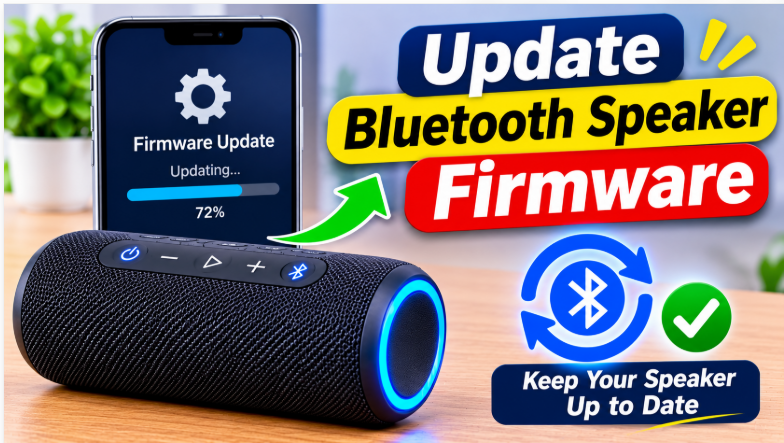
Quick answer: Here’s how to update Bluetooth speaker firmware: open your speaker’s official app, pair the speaker, open Device Settings or Firmware, and install the update if one is available. That’s the whole job for most speakers — no cables, no computer, no files to download by hand. The only rules that matter: charge the speaker first, keep your phone close, and don’t turn anything off while the update is running.
Most people never update their speaker, and honestly, most of the time it doesn’t matter — the speaker keeps playing. But a firmware update is the one fix that can solve problems no amount of resetting will touch: random disconnects, pairing that suddenly stops working, battery draining faster than it used to. It’s also a security fix — researchers found real Bluetooth flaws in speakers from Sony, Bose, JBL, Jabra, and Marshall, and the only cure was a firmware patch from the brand’s own app. So this is a small job worth doing every few months.
How to Update Bluetooth Speaker Firmware
The short version: find your brand’s app, pair the speaker, and check for an update. If one is available, install it. If nothing shows up, your speaker is already on the latest version. Or your speaker simply doesn’t get updates — that’s true for a lot of cheap no-name speakers that have no app and no support page at all. The two methods below cover every speaker that can be updated. If you’ve never paired the speaker to your phone before, our pairing guide covers the pairing part in general.
What Is Firmware, and Why Update It?
Firmware is the software inside your speaker — the small program that runs Bluetooth, the buttons, the battery, and the sound. When the brand finds a bug or adds a feature, they ship a new version of that program, and your speaker downloads it through the app. A firmware update can fix connection drops, make pairing faster, improve battery life, add a new feature (sometimes even a new codec — our codecs guide explains what those do), and close security holes. Check every 3 to 6 months — you don’t need to obsess over it, just open the app now and then. And one honest note: if your speaker keeps turning off on its own, check for a firmware update before anything else — our turning-off guide starts with the same advice, because an old firmware version is a common cause.
Method 1: Update Through the Brand’s App
This is the method for almost everyone, and it’s the safest. Every big brand has its own free app:
- JBL: JBL Portable app — if an update is available, a small red dot appears above the gear icon; tap it and follow the download steps.
- Sony: Sony Music Center app — open the app, connect the speaker, and check Device Settings for a firmware update.
- Bose: Bose Music app — open the app, select your speaker, and look for a software update notice.
- Soundcore (Anker): Soundcore app — open the app, tap your speaker, and check for a firmware update.
- Ultimate Ears: BOOM app — open the app, connect the speaker, and tap the update prompt if one appears.
- Marshall: Marshall Bluetooth app — open the app, connect the speaker, and check for an update.
- Install the brand’s official app from the App Store or Google Play. Only the official app — never a third-party “firmware updater” from the internet.
- Pair the speaker to your phone over Bluetooth and open the app. The app should find the speaker on its own.
- Open Device Settings or Firmware inside the app. On JBL, look for the red dot above the gear icon.
- If an update is available, tap Download and install. The app downloads the update to your phone first, then sends it to the speaker over Bluetooth.
- Wait. The speaker usually restarts once or twice and may go quiet for a minute. That’s normal — leave it alone until the app says the update is done.
If no update shows up: first, check the app itself is up to date in the App Store or Google Play — an old app can’t see new firmware. Then unpair and re-pair the speaker, and check again. If it still shows nothing, your speaker is either already current, or the brand has stopped releasing updates for that model.
Method 2: Update With a Computer
Some brands — Bose is the best-known — also offer a computer tool. The Bose Updater runs on a PC or Mac: you install it, connect the speaker to the computer with a USB cable, and the tool checks for an update and installs it. One real example: a SoundLink Revolve+ update to version 3.1.1 fixed phone call routing and a few bugs, and it installed entirely through the Bose Updater page. Use this method only if your brand officially offers it — if the brand’s website has no updater tool for your model, don’t go looking for one elsewhere. A firmware file from a random website is the fastest way to break a speaker, and it can also be a security risk.
Before You Update: 4 Rules That Keep Your Speaker Safe
- Charge the speaker first. At least half full, ideally fully charged — or plug it in. A speaker that dies mid-update can brick: stop working completely, with no fix at home. Our battery life guide shows what actually drains a speaker fastest, so check it if your battery never seems to last.
- Keep your phone close to the speaker. The update travels over Bluetooth, and a weak signal mid-update is the second most common cause of a failed install. Same room, no walls between them.
- Don’t turn anything off. Don’t switch off the speaker, don’t close the app, don’t walk away with the phone, and don’t unplug the USB cable if you’re updating by computer. If the update seems stuck, wait at least 10 minutes before touching anything — some updates pause for a long time and then finish on their own.
- Use only the official app or the official tool. Firmware from anywhere else — a forum download, a “free updater” app, a YouTube link — can brick the speaker or worse. If the brand doesn’t offer an update for your model, that is the answer: there is no safe update.
The bottom line is simple: open the brand’s app, check for an update every few months, and install it with a charged speaker and your phone nearby. It’s a five-minute job that fixes bugs, improves battery life, and patches security holes you’d never notice until they mattered. And if you’re shopping for a speaker next time, check whether the brand actually updates its speakers. It’s one of the 7 checks in our buying guide, and it’s the difference between a speaker that gets better over time and one that slowly falls behind. For the big-sound picks that also get regular updates, our best outdoor party speaker guide is a good place to start.
FAQs: How to Update Bluetooth Speaker Firmware
How do I update my Bluetooth speaker’s firmware?
Through the brand’s official app — JBL Portable, Sony Music Center, Bose Music, Soundcore, or the BOOM app. Pair the speaker, open Device Settings or Firmware, and install the update if one is available.
How do I check if my speaker needs a firmware update?
Open the brand’s app and connect the speaker — it shows a badge, a red dot, or an “Update available” notice. Check every 3 to 6 months.
Can I update firmware without the app?
Some brands offer a computer tool, like the Bose Updater over USB. Otherwise, no — and never use a random firmware file from the internet.
What happens if I turn off the speaker during an update?
It can brick the speaker — stop working completely, with no fix at home. Charge the speaker first and don’t touch anything until the app says the update is done.
Will a firmware update fix my speaker’s Bluetooth problems?
Often yes. Updates fix connection drops, pairing bugs, and battery issues. If the problem stays after updating, check the turning-off and not-connecting guides.
Do all Bluetooth speakers get firmware updates?
No. Cheap no-name speakers usually have no app and no update path. Big brands like JBL, Bose, Sony, Soundcore, and Ultimate Ears update their speakers regularly.