
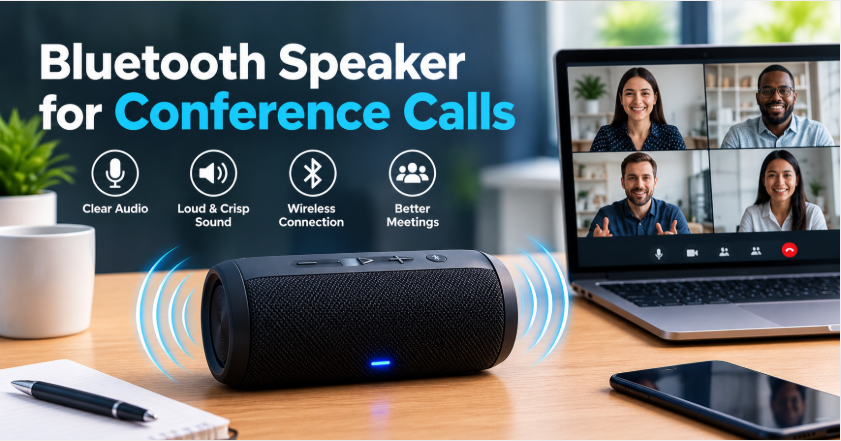
Quick answer: Bluetooth speaker for conference calls? Yes — if your speaker has a built-in microphone. Pair it with your laptop or phone, set it as both the speaker and microphone in Zoom or Teams, and you’re on the call. For occasional calls it works well. For daily, important calls, a dedicated speakerphone (with a 360-degree mic array) sounds clearer to the other side — a music speaker’s mic is a compromise, not its main job.
Working from home, your laptop’s tiny speakers and mic get tiring fast. The Bluetooth speaker sitting on your desk looks like the obvious upgrade — louder audio for you, and a mic for everyone else. It can work, but there are three things to get right: whether your speaker even has a mic, the correct audio settings in your meeting app, and the room setup. Get those right and calls sound far better than laptop audio.
Does Your Speaker Have a Microphone?
Not every Bluetooth speaker does. Check two places: the specs (look for “built-in microphone” or “hands-free calling”) and the speaker itself (a tiny pinhole, usually near the buttons). Many music-first speakers include a mic for phone calls, but it’s tuned for short calls, not meetings — it picks up your voice fine from a metre away, but struggles beyond that and in noisy rooms. For comparison, dedicated speakerphones pick up voices from 5 metres or more around the room — that’s the gap you’re paying to close when you upgrade. Our guide to Bluetooth speakers with microphones explains what to look for. If your speaker has no mic at all, it can still play call audio — but you’ll need your laptop or phone mic for talking, which defeats half the purpose.
How to Set Up a Bluetooth Speaker for Conference Calls (Zoom and Teams)
First, connect the speaker to your laptop over Bluetooth. Then set it in your meeting app — this is the step most people miss, because the app doesn’t always switch automatically:
Zoom: Settings → Audio → set both Speaker and Microphone to your Bluetooth speaker. Click “Test Speaker” and “Test Mic” to confirm.
Microsoft Teams: Settings → Devices → set Audio devices to your Bluetooth speaker for both speaker and microphone.
Google Meet: Settings → Audio → set Microphone and Speakers to your Bluetooth speaker.
General rule: if others can’t hear you, the microphone setting is almost always the culprit — the app is still using your laptop mic, or the speaker’s mic, but not the one you think.
Do this test before an important call, not during it: join a test meeting, speak at your normal volume from your normal seat, and check the mic level moves. One more tip: keep the speaker close — within a metre — because its mic is far weaker than a dedicated conference mic.
Bluetooth Speaker vs Laptop Audio: Is It Actually Better?
For listening, yes, clearly — a dedicated speaker is louder, fuller, and easier to hear across a room than laptop speakers, especially in a group call where several people need to hear. For talking, it’s a draw or slightly worse: a laptop mic sits close to your face, while a speaker mic sits on the desk and picks up more room sound. So the upgrade is real but one-sided: you hear the meeting much better, while the other side hears you about the same, sometimes a little worse. If your main complaint is “I can’t hear them,” a speaker fixes it. If the complaint is “they can’t hear me,” a headset or a speakerphone is the better fix.
Sound Tips for Clearer Calls
Sit close to the speaker. A music speaker’s mic is designed for near use. Two metres away, your voice gets thin and room echo creeps in.
Keep volume moderate. Too loud, and the mic picks up the other side’s voice from the speaker — that’s the echo everyone complains about. If echo persists, lower the volume before blaming the mic.
Quiet the room. Fans, open windows, and keyboard clatter all reach a speaker mic easily. Close the door and move away from noise sources.
Face the speaker. Most speaker mics are directional enough that talking past it, not at it, drops your volume noticeably.
Mute when you’re not speaking. It’s the simplest noise fix there is — your room’s background sounds disappear for everyone, and it costs nothing.
For general voice clarity, the same ideas apply as for music: placement matters more than people expect, and our sound quality guide covers how room position changes what you hear.
Common Problems and Fixes
Echo on the call: lower the speaker volume, move the speaker further from hard walls, or switch to a headset for that call.
Others can’t hear you: check the app’s microphone setting (see above) and confirm the speaker is actually connected, not just paired.
Your voice sounds quiet or distant: move closer, speak toward the speaker, and check the app’s mic input level isn’t set low.
Audio delay (lip-sync lag): Bluetooth has a small inherent delay; for calls it’s rarely noticeable, but if it bothers you, a wired connection removes it. If the speaker pairs with a second speaker, use only one for calls — stereo pairing can add delay and confusion to mic routing.
Unstable connection mid-call: if the speaker keeps disconnecting, your laptop’s built-in Bluetooth may be the weak link. A USB Bluetooth dongle (the kind bundled with dedicated speakerphones) gives a far more stable connection — or switch to a wired USB connection if your speaker supports one.
When a Dedicated Speakerphone Is Worth It
If calls are occasional, your Bluetooth speaker is fine. Upgrade to a dedicated speakerphone when calls are daily, when several people sit around one device, or when call quality affects your work. Speakerphones carry a 360-degree mic array that hears a whole room, noise cancellation built for voices — modern ones use AI to filter over a thousand everyday sounds like keyboard clicks and air-conditioning hum, so only voices get through — and echo cancellation designed for calls — three things music speakers compromise on. For a single person at a desk, a good headset often beats both: it removes room noise entirely. Choose by your real setup, not by the fanciest device.
The Bottom Line on Bluetooth Speaker for Conference Calls
A Bluetooth speaker for conference calls works well for occasional meetings: check it has a mic, set speaker and microphone correctly in Zoom or Teams, sit close, and keep volume moderate. Its limits are real — weak far-field mic pickup, echo at high volume, and no room-scale coverage — so daily or multi-person calls deserve a dedicated speakerphone or a headset. If you’re choosing a speaker partly for calls, our roundup of the best outdoor party speakers covers models that handle both music and everyday use.
FAQs: Bluetooth Speaker for Conference Calls
Can I use a Bluetooth speaker for Zoom calls?
Yes, if it has a built-in microphone. Pair it with your laptop, then set it as both speaker and microphone in Zoom’s Settings → Audio, and test before the call.
Why can’t others hear me on my Bluetooth speaker?
Almost always a settings issue: the meeting app is still using your laptop mic, or the speaker is paired but not connected. Check the app’s microphone setting and re-confirm the Bluetooth connection.
Do all Bluetooth speakers have microphones?
No. Many music-first speakers have no mic, or a basic one for short phone calls. Check the specs for “built-in microphone” before assuming it works for meetings.
How do I stop echo on speaker calls?
Lower the speaker volume first — echo usually comes from the mic picking up the speaker’s own output. If it persists, move the speaker away from walls or switch to a headset for that call.
Is a Bluetooth speaker or a headset better for calls?
For a single person, a headset is usually clearer because it removes room noise entirely. A speaker is better when you want hands-free audio or several people need to hear the call.
Can I use two paired speakers for a conference call?
Not recommended. Stereo pairing can confuse microphone routing and add delay. Use a single speaker for calls, and save pairing for music.