
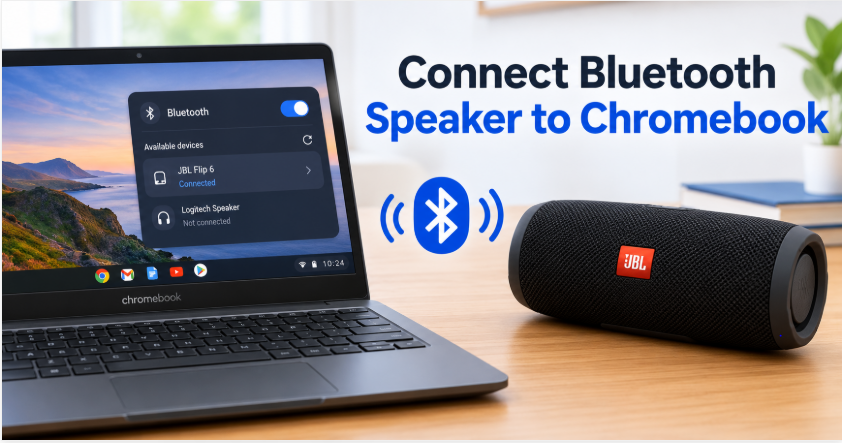
Quick answer: Here’s how to connect Bluetooth speaker to Chromebook: put your speaker into pairing mode (usually a long press on the Bluetooth or power button until it blinks), then click the clock at the bottom-right of your Chromebook, turn Bluetooth on, and tap your speaker’s name under available devices. When it says Connected, play any song to test it. The whole thing takes under a minute — and if your speaker doesn’t appear, it’s almost always because pairing mode wasn’t on, not because anything is broken.
Chromebooks look simple, and Bluetooth pairing on them mostly is — but the steps are not the same as on a Windows laptop or a Mac, which is why our laptop guide doesn’t cover them. ChromeOS has its own Quick Settings panel, its own pairing screen, and one special case — school-managed Chromebooks — that can block Bluetooth entirely. Here’s the full walkthrough, plus the fixes for the days it doesn’t work first try.
Before You Start: 3 Quick Checks
Charge your speaker. A speaker with a nearly dead battery often won’t enter pairing mode at all. Plug it in for a few minutes if you’re unsure.
Stay close. Keep the speaker within a metre or two of your Chromebook for the first pairing. You can move it further away afterwards.
Disconnect other devices. If your speaker is already connected to a phone or another laptop, it may refuse a new connection. Turn the other device’s Bluetooth off, or disconnect the speaker from it first.
How to Connect Bluetooth Speaker to Chromebook
Put the speaker in pairing mode. Turn the speaker on, then press and hold its Bluetooth button (or the power button, on speakers without a dedicated Bluetooth button) until you hear a tone or see a blinking light. Blinking means “I’m ready to pair” — a steady light usually means it’s already connected to something else.
Open Quick Settings. Click the clock at the bottom-right corner of your Chromebook screen. This opens the Quick Settings panel with tiles for Wi-Fi, Bluetooth, volume, and more.
Turn Bluetooth on. If the Bluetooth tile is off, click it once to turn it on. Then click the small arrow next to the Bluetooth tile — this opens the Bluetooth panel and starts scanning for nearby devices.
Wait for your speaker’s name to appear, then click it. Your speaker should show up under available devices within a few seconds. Click its name, and your Chromebook will connect — the speaker will move to your paired devices list with the word Connected next to it.
Play something. Open any music or video app and press play. If sound comes from your Chromebook’s own speakers instead, click the clock again, look for the audio output option near the volume slider, and select your speaker there.
Prefer the longer route? You can also go through Settings → Bluetooth → Pair new device — it leads to the same pairing screen. If your speaker asks for a PIN, try 0000 or 1234; those are the standard defaults, and the manual will say if yours is different.
How to Connect Bluetooth Speaker to Chromebook Again
After the first pairing, your Chromebook remembers the speaker. Next time, just turn the speaker on near your Chromebook and it should connect by itself within a few seconds. If it doesn’t, click the clock, open the Bluetooth panel, and click the speaker’s name under paired devices to connect manually. If even that fails, remove the speaker from your paired devices (click its name and choose Forget), then run through the first-time steps again. Forgetting and re-pairing fixes most stubborn connections, and it takes less than a minute.
Chromebook Bluetooth Speaker Problems (and Fixes)
Speaker doesn’t appear in the list. First, confirm pairing mode is actually on (blinking light, not steady). Then check that the speaker isn’t already connected to another device. If both are fine, turn your Chromebook’s Bluetooth off and on again, then retry.
It connects but there’s no sound. Check two volumes: your Chromebook’s volume and the speaker’s own volume buttons — they work independently, and one of them is often at zero. Then check the audio output in Quick Settings, as above.
Sound keeps cutting out. This is usually distance or interference, not a fault. Move closer, keep your Chromebook out of a bag, and move away from busy Wi-Fi routers and microwaves, which share the same wireless space.
Nothing works at all. Restart your Chromebook (power off, then on again), then forget and re-pair the speaker. Also check for a ChromeOS update — Settings → About ChromeOS → Check for updates — because Google fixes Bluetooth bugs in software updates, and an old version is a surprisingly common cause of pairing trouble. As a last resort, check your speaker’s manual for its factory reset or clear-pairings button combination; this wipes the speaker’s saved pairings, so you’ll need to pair it fresh afterwards.
School Chromebook Limits You Should Know
If your Chromebook is managed by a school, Bluetooth may be restricted by the school’s admin — this is the one case where no amount of retrying will help. Signs of a managed restriction: the Bluetooth tile is missing entirely, or it’s greyed out and can’t be turned on. In that case, ask your school’s IT admin whether Bluetooth is allowed on your device; only they can change that setting. On a personal Chromebook, Bluetooth is on by default and this section doesn’t apply.
One more limit worth knowing: like most devices, a Chromebook sends audio to one Bluetooth device at a time. If music suddenly switches back to the Chromebook’s own speakers, something else (like earbuds) grabbed the connection — check Quick Settings to switch it back. And if you want two speakers playing together, you need the speakers’ own pairing system — our pairing guide covers TWS, PartyBoost, and the other options. Chromebooks generally use standard Bluetooth audio codecs, and our codecs guide explains what that means for sound quality.
Tips for Better Sound on Chromebook
Turn the Chromebook volume up high, then control loudness on the speaker. A low Chromebook volume sent to a loud speaker sounds worse than a strong signal turned down at the speaker.
Place the speaker properly. A speaker on the floor in a corner sounds muddy no matter what device you use — our sound quality guide covers EQ and placement tweaks that make a bigger difference than any setting on the Chromebook.
Keep ChromeOS updated. Updates fix Bluetooth bugs and improve compatibility with new speakers, so check for them whenever pairing starts acting up.
The Bottom Line on Connecting a Speaker to Chromebook
Connecting a Bluetooth speaker to a Chromebook comes down to one rule: speaker in pairing mode, clock → Bluetooth → tap the name, done. Everything else — forgetting and re-pairing, checking the audio output, knowing the school-admin limit — is just for the days it doesn’t work first try. And if you’re choosing a speaker rather than connecting one, our roundup of the best outdoor party speakers is the place to start.
FAQs: How to Connect Bluetooth Speaker to Chromebook
Why won’t my Chromebook find my Bluetooth speaker?
Almost always because the speaker isn’t in pairing mode — look for a blinking light, not a steady one. Also check the speaker isn’t already connected to another device, and turn your Chromebook’s Bluetooth off and on again before retrying.
Where is Bluetooth on a Chromebook?
Click the clock at the bottom-right corner to open Quick Settings — the Bluetooth tile is there. Click the small arrow next to it to see available devices and pair a new one. You can also go through Settings → Bluetooth → Pair new device.
Why does my Chromebook connect but play no sound?
Check both volumes (Chromebook and speaker buttons work independently), then check the audio output in Quick Settings. If sound still comes from the Chromebook, forget the speaker in Bluetooth settings and pair it again.
Can I connect two Bluetooth speakers to my Chromebook at once?
Not natively — a Chromebook sends audio to one Bluetooth device at a time. To play on two speakers together, use the speakers’ own pairing system (like TWS or PartyBoost), covered in our pairing guide.
Why is Bluetooth missing or greyed out on my Chromebook?
On a school-managed Chromebook, the admin may have disabled Bluetooth — only the school’s IT admin can change that. On a personal Chromebook, try restarting the device and checking for a ChromeOS update first.
How do I disconnect a Bluetooth speaker from my Chromebook?
Click the clock, open the Bluetooth panel, click the speaker’s name, and choose Disconnect for a temporary break, or Forget to remove it completely. Turning the speaker off also disconnects it.