
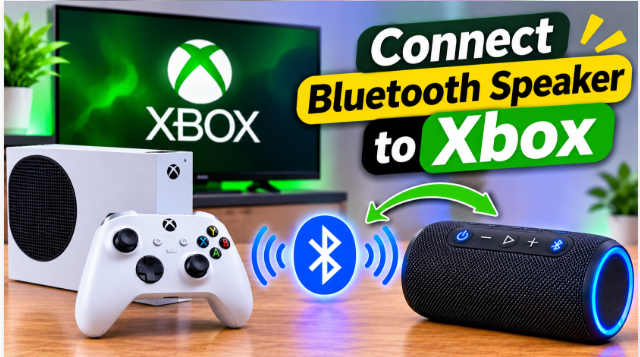
Quick answer: Here’s how to connect Bluetooth speaker to Xbox: plug a Bluetooth transmitter into your controller’s 3.5mm jack, put the speaker in pairing mode, and pair the transmitter to the speaker. That’s the honest answer — the Xbox has no Bluetooth audio of its own, so there is no direct pairing and no Bluetooth switch in Settings. The steps below cover the transmitter method, the TV method, and the free Xbox app method.
Here’s the part most guides skip: you cannot pair a Bluetooth speaker to an Xbox the way you pair one to a phone. The Xbox One and Series X|S don’t have Bluetooth audio at all. They use a different wireless system, called Xbox Wireless, for controllers and headsets. The Bluetooth inside your controller is for connecting the controller to a PC or phone — not for sending game sound to a speaker. So the question isn’t “where is the Bluetooth menu” — there isn’t one. The question is which workaround fits your setup, and there are three that actually work.
How to Connect Bluetooth Speaker to Xbox
You need three things: an Xbox (One, Series S, or Series X), a Bluetooth speaker, and one of the three routes below. The fastest is a small Bluetooth transmitter in the controller’s headphone jack — it works with any TV and needs no settings change. If your TV has Bluetooth of its own, pairing the speaker to the TV is even simpler. And if you don’t want to buy anything, the Xbox app on your phone can carry the sound for free. Pick the route that fits, and skip the rest. If you’ve never put a speaker into pairing mode before, our pairing guide explains it in general; the steps below are the same idea, through a transmitter instead of a menu.
Before You Start: 3 Xbox Limits to Know
- There is no Bluetooth switch on the Xbox. Any guide that tells you to “turn on Bluetooth in Xbox Settings” is wrong — that menu doesn’t exist. Xbox controllers and headsets use the Xbox Wireless protocol, which is not standard Bluetooth audio. Don’t waste time hunting through Settings for a toggle that was never there.
- One speaker at a time. A transmitter pairs to a single speaker, and a TV sends Bluetooth audio to one device at a time. You cannot pair two speakers to the Xbox at once. To switch speakers, disconnect the first one, then pair the second.
- The speaker can’t be your microphone. A Bluetooth speaker plays game sound only. Party chat still needs a headset with a mic — your friends won’t hear you through the speaker, and the Xbox won’t listen through it either.
Method 1: Bluetooth Transmitter on the Controller
This is the best route for most people. A Bluetooth transmitter is a small plug that turns the controller’s headphone jack into a Bluetooth signal. Buy one with a 3.5mm plug — not an optical-only one, because the Series X and S have no optical audio port, so an optical transmitter can’t plug into the console directly. If you can, pick one that supports aptX Low Latency: it keeps the delay under 40 milliseconds, which matters in fast games.
- Plug the transmitter into the controller’s 3.5mm jack. It’s the small round port at the bottom of the controller. Set the transmitter to TX (transmit) mode if it has a switch — TX sends sound out, RX receives it, and the wrong mode is the most common reason this fails.
- Put the speaker in pairing mode. On most speakers, hold the Bluetooth or power button until the light blinks fast — a fast blink means “ready to pair”, a steady light usually means “already connected”. If your speaker is still connected to your phone, disconnect the phone first, or it won’t show up.
- Pair the transmitter to the speaker. Press the pairing button on the transmitter and wait — most pair on their own within a few seconds, and the speaker usually plays a chime when it connects.
- Test it. Start any game and listen — sound should now come from the speaker. If the game is already running, the sound switches over on its own.
Volume tip: if the sound is too low, check both volumes — the controller’s volume controls and the speaker’s own buttons. If there’s no sound at all, check Settings → General → Volume & audio output and make sure headset audio is turned on.
If it doesn’t work: check the transmitter is in TX mode, not RX. Confirm real pairing mode on the speaker — a slow blink is not pairing mode. Forget and re-pair the speaker from the transmitter. Restart the console. Charge the speaker — a nearly dead speaker can appear and then fail to connect, and our battery life guide shows what actually drains a speaker fastest. And expect a small delay: Bluetooth always adds a little lag, and our codecs guide explains why. For casual games you won’t notice it; for fast competitive play, a wired connection is still the honest answer.
Method 2: Pair the Speaker to Your TV Instead
If your TV has Bluetooth, this is the simplest route of all — no extra hardware, no transmitter, nothing to buy. The Xbox sends its sound to the TV through the HDMI cable, and the TV sends it on to the speaker. Everything on that HDMI input plays through the speaker: games, streaming apps, the dashboard, all of it.
- Put the speaker in pairing mode (hold the Bluetooth or power button until the light blinks fast).
- Open your TV’s Bluetooth settings and select the speaker from the list. The exact menu varies by brand — it’s usually under Settings → Sound → Sound Output → Bluetooth Speaker List.
- Test it. Start a game on the Xbox and listen — the sound should come from the speaker.
Our TV guide covers this method step by step for every major TV brand. The only catch: if your TV has no Bluetooth either, this route doesn’t exist — go back to the transmitter method above.
Method 3: Xbox App Remote Play (No Extra Hardware)
This one costs nothing, but it has a condition: your phone does the work, so the phone has to stay nearby and your Wi-Fi has to be decent.
- Turn on Remote Features on the Xbox. Go to Settings → Devices & connections → Remote Features and switch it on.
- Open the Xbox app on your phone or tablet and sign in with the same account.
- Tap Remote Play on this device to start streaming your game to the phone.
- Pair your phone to the speaker in your phone’s Bluetooth settings, with the speaker in pairing mode.
- Play. The sound travels Xbox → phone → speaker.
Two honest notes: the extra hop adds delay, so this route suits casual games and story games better than fast competitive ones; and the chain breaks if the phone walks away or the Wi-Fi stutters. It is the free option, not the best one — the transmitter method sounds better and doesn’t depend on your network.
The bottom line is simple: the Xbox can’t pair a speaker directly, so pick a route. A transmitter in the controller jack gives the best sound, the TV’s Bluetooth is the simplest setup, and the Xbox app costs nothing. Either way, a Bluetooth speaker is a genuine upgrade over thin TV speakers — louder, fuller, and with no cable in the way. And if you’re still shopping for a speaker, our buying guide runs through the 7 checks that matter before you pay, and our best outdoor party speaker guide rounds up the big-sound picks that also work indoors.
FAQs: How to Connect Bluetooth Speaker to Xbox
Can you connect a Bluetooth speaker to an Xbox directly?
No. Xbox One and Series X|S have no native Bluetooth audio — they use the Xbox Wireless protocol for controllers and headsets. You need a Bluetooth transmitter, your TV’s Bluetooth, or the Xbox app.
What is the easiest way to connect a speaker to Xbox?
A Bluetooth transmitter in the controller’s 3.5mm jack — it works with any TV and needs no settings change. If your TV has Bluetooth, pairing the speaker to the TV is even simpler.
Can I connect two Bluetooth speakers to one Xbox?
No. A transmitter pairs to one speaker at a time, and a TV sends Bluetooth audio to one device at a time. To switch speakers, disconnect the first one, then pair the second.
Why is there a delay between the game and the speaker?
Bluetooth audio always adds a small delay. Use a transmitter that supports aptX Low Latency (under 40 milliseconds) to keep it small. For fast competitive games, a wired connection is still better.
Can I use the speaker for party chat?
No. A Bluetooth speaker plays game sound only — it can’t be a microphone. Party chat still needs a headset with a mic.
Why does my Xbox have no Bluetooth setting?
Because there isn’t one. Xbox uses Xbox Wireless for controllers and headsets, not standard Bluetooth audio. Any guide telling you to “turn on Bluetooth in Xbox Settings” is wrong.