
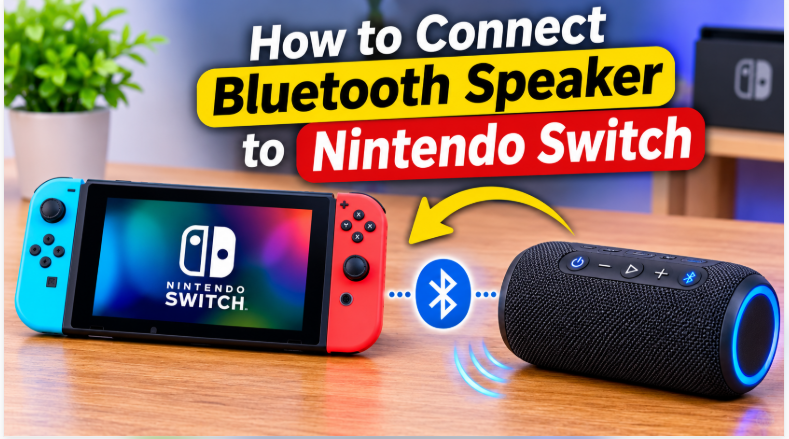
Quick answer: Here’s how to connect Bluetooth speaker to Nintendo Switch: update your Switch first, put the speaker in pairing mode, then go to System Settings → Bluetooth Audio → Pair Device and select your speaker. That’s it — no dock, no cable, and no extra app needed. Before you start, know the three Switch limits: your system must be on version 13.0.0 or newer, Bluetooth microphones don’t work, and only one Bluetooth audio device can connect at a time. The steps below cover pairing, fixes, and the gaming delay you should expect.
For years the Switch had no Bluetooth audio at all — players either used wired headphones or the TV speakers. That changed with system update 13.0.0, which added Bluetooth audio to every Switch model. If your Switch is updated, pairing a Bluetooth speaker takes about a minute. If it isn’t, the Bluetooth Audio option simply won’t appear, and that’s the first thing to fix.
How to Connect Bluetooth Speaker to Nintendo Switch
You need three things: a Switch updated to version 13.0.0 or newer, a charged Bluetooth speaker, and about a minute of patience. The Switch pairs directly with the speaker — the TV and the dock play no part in the connection, which is why this works in handheld mode and in docked TV mode alike. If you have never paired a Bluetooth device before, our pairing guide explains pairing mode in general; the Switch steps below are the same idea, in Nintendo’s menu.
Before You Start: 3 Switch Limits to Know
- System version 13.0.0 or newer is required. Bluetooth audio did not exist on the Switch before this update. Check yours at System Settings → System → System Update, and install any pending update before you try to pair.
- One Bluetooth audio device at a time. The Switch connects to a single Bluetooth speaker or headphone set — you cannot pair two speakers to it at once. (Pairing two speakers together in general is a different trick, covered in our different-speakers guide.)
- Bluetooth microphones don’t work. You will hear game sound through the speaker, but voice chat over Bluetooth is not supported — the Switch simply ignores Bluetooth mic input. Also note that while Bluetooth audio is connected, the Switch allows up to two wireless controllers instead of the usual eight, which only matters if you play with a big group.
One more thing worth knowing: Bluetooth audio works on every Switch model — original, OLED, and Lite alike — because it arrived through a system update, not new hardware. If your Switch can update to version 13.0.0, it can pair a speaker.
Steps to Pair Your Speaker
- Update the Switch. Go to System Settings → System → System Update and install any update. Without version 13.0.0 or newer, the Bluetooth Audio menu won’t show up at all.
- Put the speaker in pairing mode. On most speakers, hold the Bluetooth or power button until the light blinks — a fast blink means “ready to pair”, a steady light usually means “already connected”. If your speaker is still connected to your phone, disconnect the phone first, or the speaker won’t appear on the Switch.
- Open Bluetooth Audio on the Switch. Go to System Settings → Bluetooth Audio → Pair Device. The Switch will start searching.
- Select your speaker. When your speaker’s name appears in the list, select it. A confirmation appears once it connects.
- Test it. Start any game and listen — sound should now come from the speaker. If the game is already running, its sound switches over automatically once pairing completes.
Volume tip: if the sound is too low after pairing, check both volumes — the Switch’s own volume buttons and the speaker’s volume. Bluetooth output follows the Switch’s current volume level, so a quiet Switch means a quiet speaker even with the speaker turned all the way up.
If Your Speaker Won’t Pair
Work through these in order — most pairing failures are fixed by the first two:
- Check the update first. No Bluetooth Audio menu means the system is older than 13.0.0. Update and try again.
- Confirm real pairing mode. A slow blink or a steady light is not pairing mode — hold the button until the light blinks fast, and keep the speaker within a metre of the Switch while searching.
- Forget and re-pair. If the speaker appears but won’t connect, go to System Settings → Bluetooth Audio, remove the saved device, and pair again from scratch.
- Restart the Switch. Hold the power button, choose Restart, then try the steps again. A restart clears stuck Bluetooth states.
- Charge the speaker. A nearly dead speaker can show up in the list and then fail to connect. Charge it fully and retry.
- Try another device. If a headphone set pairs fine but the speaker won’t, the problem is in the speaker, not the Switch — and the other way round tells you the Switch needs the restart or update.
Gaming Latency: What to Expect
There is one honest downside: a small audio delay. The Switch sends sound over the standard SBC codec, and Bluetooth always adds a little lag — usually a fraction of a second. For casual games, story games, and party games you will barely notice it. For rhythm games or fast competitive play, where sound timing matters, the delay can be annoying. Our codecs guide explains why this lag exists and why no setting on the Switch removes it — if timing is critical, use a wired connection instead. For long sessions, keep the speaker charged too: a speaker dying mid-game is an avoidable annoyance, and our battery life guide shows what actually drains a speaker fastest. And if you still need to buy a speaker for the Switch, pick a small portable one with low latency — our buying guide runs through the 7 checks that matter before you pay.
The bottom line is simple: update the Switch, pair the speaker from the Bluetooth Audio menu, and accept the small delay for casual play. For a living-room setup or a handheld session, a Bluetooth speaker is a genuine upgrade over the Switch’s tiny built-in speakers — louder, fuller, and with no cable in the way.
FAQs: How to Connect Bluetooth Speaker to Nintendo Switch
Can you connect a Bluetooth speaker to a Nintendo Switch?
Yes, if your Switch is on system version 13.0.0 or newer. Go to System Settings → Bluetooth Audio → Pair Device, put the speaker in pairing mode, and select it from the list.
Does a Bluetooth speaker work when the Switch is docked?
Yes. The speaker pairs with the console itself, not the TV, so it works in handheld mode and in docked TV mode alike. Sound comes from the speaker either way.
Does the microphone work over Bluetooth on Switch?
No. The Switch does not support Bluetooth microphones, so voice chat through a Bluetooth speaker or headset mic won’t work. Game sound works fine — only the mic is unsupported.
Can I connect two Bluetooth speakers to one Switch?
No. The Switch allows only one Bluetooth audio device at a time. Connecting two speakers together is a different feature, and it doesn’t apply to the Switch’s Bluetooth audio.
Why is there a delay between the game and the speaker?
Bluetooth audio always adds a small delay, and the Switch uses the standard SBC codec, so a fraction of a second of lag is normal. It’s fine for casual games; for rhythm or competitive games, use a wired connection instead.
How do I disconnect a Bluetooth speaker from the Switch?
Go to System Settings → Bluetooth Audio, select the connected device, and choose Disconnect Device to pause it or Forget Device to remove it completely.