
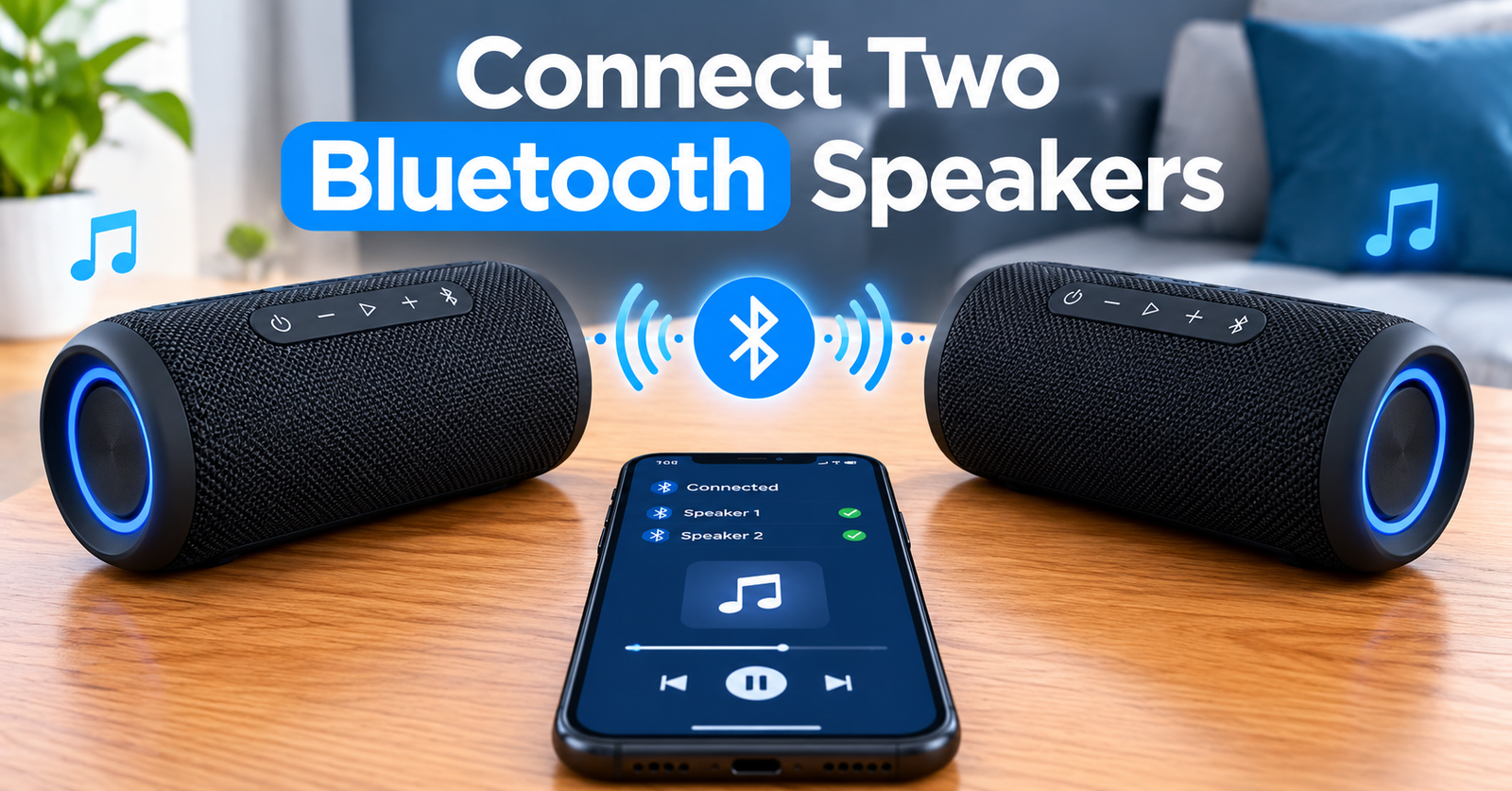
| Quick answer: How do you connect two Bluetooth speakers together? Use the pairing system built into your speakers: press the TWS, PartyBoost, Party Connect, or PartyUp button on both speakers (same brand, same system), and they link in under a minute. For two different speakers, Samsung phones have Dual Audio (Settings > Connections > Bluetooth > Advanced). iPhones cannot natively play to two Bluetooth speakers at once — use the speaker brand’s app instead. |
Two speakers changed my backyard parties forever. For years I ran a single speaker at full volume — the people near it got blasted, the people ten feet away heard murmurs. Then a friend brought a second, identical speaker, we paired them in about forty seconds, and placed one at each end of the yard. Same music, half the volume, and suddenly everyone could actually hear it.
That is the whole trick this guide teaches. By the end, you will know the five ways to connect two Bluetooth speakers, which one fits the speakers you already own, and the mistakes that make pairing fail. If you are still deciding what to buy for your next party, read our guide to the best outdoor party speakers first — then come back here to double their power.
Why Two Speakers Beat One Big Speaker
Before the how, the why — because it is not just about being louder:
- Even coverage. One speaker fades with distance; two speakers placed apart keep the volume steady across the whole party. Our Bluetooth speaker wattage guide explains why placement beats raw power outdoors.
- True stereo. A paired set splits the music into left and right channels, so you hear the song the way it was mixed — drums on one side, guitar on the other.
- Less strain. Two speakers sharing the work play cleaner at party volume than one speaker screaming at 100%.
The Golden Rule: Same Brand, Same Pairing System
Here is the fact that saves the most disappointment: you cannot pair a JBL with a Sony, or a Soundcore with a Bose. Every brand uses its own private pairing language, and the two speakers must speak the same one. They usually also need to be the same model, or at least from the same product family.
| Brand | Pairing system | How many speakers | Needs the app? |
| JBL | PartyBoost (newer) / Connect+ (older) / Auracast (newest) | 2 for stereo, up to 100 for party | JBL Portable app (recommended) |
| Sony | Party Connect | Up to 100 | No — buttons work |
| Ultimate Ears | PartyUp | 50+ | UE BOOM app (required) |
| Soundcore | TWS / PartyCast | 2 for stereo, 100+ for PartyCast | Soundcore app (recommended) |
| Samsung phones | Dual Audio | 2 (any brands) | No — built into the phone |
Important: JBL’s three systems do not mix. A PartyBoost speaker cannot pair with a Connect+ speaker, even though both are JBL. Check which logo is printed near the pairing button before you buy a second speaker.
Method 1: TWS Stereo Pairing (Any Matching Pair)
What TWS actually means
TWS stands for True Wireless Stereo. It is the generic name for pairing two identical speakers so one plays the left channel and the other plays the right. Most brands support it on matching models — two of the exact same speaker.
How to do it
- Turn both speakers on and keep them within a few feet of each other. Do not connect either one to your phone yet.
- Press and hold the TWS / pairing button on the first speaker until you hear a confirmation tone (usually 2–3 seconds).
- Do the same on the second speaker. Within about 30 seconds they find each other — one becomes the left channel, the other the right.
- Now open your phone’s Bluetooth settings and connect to the first speaker. Music plays through both in stereo.
To unpair, turn one speaker off, or press and hold the TWS button again.
Method 2: JBL PartyBoost (Step by Step)
JBL’s PartyBoost is the most common pairing system you will meet, found on speakers like the Flip 6, Charge 5, Xtreme 3, and Boombox 3. Here is the reliable way to do it:
- Connect your phone to the first speaker over Bluetooth, as normal.
- Download the JBL Portable app (free, iOS and Android) — it makes the next steps far easier.
- Press the PartyBoost button (two linked circles) on the first speaker, then on the second speaker. They connect within about 30 seconds and appear in the app.
- In the app, choose your mode: Stereo splits left and right between the two speakers; Party plays the same sound from both (and supports up to 100 speakers).
Stereo vs Party mode — which to pick?
For two speakers at a backyard party, Stereo almost always sounds better — wider, more alive. Use Party mode when you have three or more speakers spread across a big space, where stereo separation would just confuse the sound.
Method 3: Sony Party Connect
Sony’s system is refreshingly button-based — no app strictly required. It works on models like the SRS-XB33, XE300, XG500, and the ULT FIELD series, and supports up to 100 compatible speakers, according to Sony’s official Party Connect guide.
- Turn both speakers on and place them within about 1 metre (3 feet) of each other. Stop any music playing.
- On the first speaker, press and hold the Party Connect button until you hear the voice prompt.
- On the second speaker, press and hold its Party Connect button the same way.
- Wait for the confirmation sound, then connect your phone to the first speaker over Bluetooth. Both play together.
Sony’s own support note: update both speakers to the latest firmware first, or they may refuse to connect even when both support Party Connect.
Method 4: Ultimate Ears PartyUp
UE’s PartyUp lives entirely inside the UE BOOM app, and it is the most visual of the lot — you literally drag speakers together on screen. It works with BOOM, BOOM 2, BOOM 3, MEGABOOM, and HYPERBOOM (not the WONDERBOOM), and supports 50+ speakers.
- Connect your phone to the first UE speaker over Bluetooth and open the UE BOOM app.
- Tap the PartyUp icon (two speakers) at the bottom of the screen.
- You will see your active speaker in the centre and discovered speakers at the bottom. Drag the second speaker up next to the first one.
- A pairing icon appears for a few seconds, then vanishes — the speakers are linked and playing the same audio.
To remove a speaker, drag it back down. To end the whole party at once, drag your own speaker’s icon down.
Method 5: Samsung Dual Audio (Two Different Speakers)
Do your two speakers come from different brands? Then the methods above cannot help — but Samsung Galaxy phones (Bluetooth 5.0 and newer) have a built-in escape hatch called Dual Audio, which sends the same music to any two Bluetooth devices at once. Samsung’s official Dual Audio guide confirms the exact steps below.
How to turn it on
- Pair both speakers to your Samsung phone, one at a time, in Settings > Connections > Bluetooth.
- Go to Settings > Connections > Bluetooth, tap the three dots, then Advanced, and switch Dual Audio
- Play music, swipe down the Quick panel, tap Media, and tick both speakers under audio output.
The honest limits
- Dual Audio is media only — it does not work for phone calls.
- Two different speaker models can drift slightly out of sync. Using two identical speakers keeps the timing tight.
- Volume is controlled per speaker, which is handy when one side of the party is louder than the other.
What About iPhone? The Honest Answer
iPhones cannot natively send music to two Bluetooth speakers at the same time. Apple’s Audio Sharing works for AirPods and Beats headphones — not third-party speakers. Your workarounds:
- Use the speaker brand’s system (PartyBoost, Party Connect, PartyUp) — these work from any phone, iPhone included, because the speakers talk to each other, not through the phone.
- AirPlay 2 speakers (like the Sonos Move or Apple HomePod) can be grouped in the Home app — but that only helps if your speakers support AirPlay.
- A Bluetooth splitter/transmitter plugged into the phone’s USB-C/Lightning port can broadcast to two speakers, with a small risk of audio lag.
Troubleshooting: 5 Fixes When Pairing Fails
-
The speakers will not find each other
Bring them within arm’s reach during pairing, and make sure neither is already connected to your phone. A speaker connected to a phone often refuses to enter pairing mode.
-
Only one speaker plays
Forget both speakers in your phone’s Bluetooth settings, then start over — connect the phone only after the speakers have linked to each other.
-
The sound is out of sync
This hits mixed-brand setups (Samsung Dual Audio) hardest. Use two identical speakers, keep them within Bluetooth range of the phone, and close battery-saver modes that throttle Bluetooth.
-
The app cannot see the second speaker
Update the speaker firmware through the brand’s app first. Sony and JBL both warn that mismatched firmware silently blocks pairing.
-
It worked yesterday but not today
Bluetooth pairings go stale. Remove (“forget”) the speakers from your phone, restart everything, and re-pair from scratch. It takes two minutes and fixes most mystery failures.
Conclusion
Connecting two Bluetooth speakers is a two-minute job once you know which system you own: TWS or the brand button for matching speakers, the brand’s app for JBL, Sony, or UE, and Samsung’s Dual Audio for mixed pairs. Place the pair on opposite sides of your party — just like our outdoor party speaker guide recommends — and you get wider, cleaner, more even sound than any single speaker working twice as hard.
FAQs
How do I connect two Bluetooth speakers to my phone at the same time?
For two speakers of the same brand and model, use their built-in pairing: TWS, JBL PartyBoost, Sony Party Connect, or UE PartyUp. For two different brands, use Samsung’s Dual Audio feature (Settings > Connections > Bluetooth > Advanced). iPhones have no native option — use the speaker brand’s pairing system instead.
Can I pair two different brands of Bluetooth speakers together?
Not with the brands’ own systems — JBL cannot pair with Sony, and so on. The exception is Samsung’s Dual Audio, which plays the same audio to any two Bluetooth speakers regardless of brand, though you may notice slight sync lag between different models.
What is the difference between stereo mode and party mode?
Stereo mode splits the music into left and right channels across two speakers for a wider soundstage. Party mode plays the identical mono mix from every connected speaker, which suits three or more speakers spread over a large area.
Why is only one of my paired speakers playing sound?
Your phone probably connected to one speaker before the pair linked up. Forget both speakers in Bluetooth settings, link the speakers to each other first, then connect your phone to the primary speaker.
Can I connect more than two Bluetooth speakers?
Yes. JBL PartyBoost and Sony Party Connect each support up to 100 speakers, and UE PartyUp supports 50+. Use Party mode (not Stereo) when connecting three or more.
Does pairing two speakers drain the battery faster?
Each speaker uses its own battery, so runtime per speaker stays roughly the same — but because two speakers share the work, you can run each at lower volume, which often extends effective playtime at party volume.