
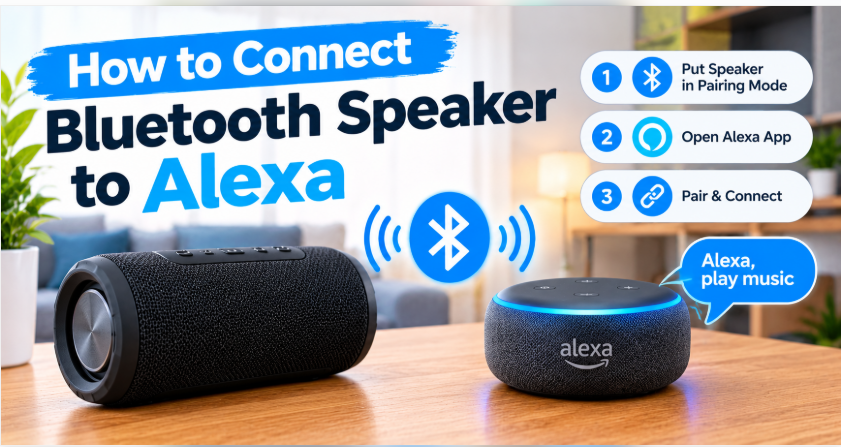
Quick answer: How to connect Bluetooth speaker to Alexa? Put your speaker in pairing mode, open the Alexa app, go to Devices → Echo & Alexa → pick your Echo → Bluetooth Devices → Pair a New Device, and tap your speaker’s name. Or just say “Alexa, pair” and select the speaker from the list. Once connected, everything Alexa plays comes through the bigger speaker.
An Echo’s built-in speaker is fine for a weather report and a kitchen timer. It is not fine for music. The moment you play a song, the sound feels small, flat, and a little sad — like the music is trapped inside a coffee mug. The fix is already sitting on your shelf: that Bluetooth speaker you use with your phone. Pair it with your Echo once, and Alexa’s voice, your playlists, and your podcasts all come out big, warm, and room-filling.
This guide walks through exactly how to connect Bluetooth speaker to Alexa — through the app, with your voice, and what to do when Alexa pretends your speaker does not exist. The whole thing takes about two minutes, and you only have to do it once.
Before You Start
Three quick checks save most of the frustration people hit with this:
- Put the speaker in pairing mode. Switch it on, then hold its Bluetooth button until the light starts blinking. A solid light means it is already connected to something else; a blinking light means it is ready to pair. Pairing mode usually times out after a minute or two, so do the next steps promptly.
- Keep the Echo and the speaker close. For the first pairing, put them in the same room, within a few feet of each other. Bluetooth’s range is short, and walls in between make the first connection harder than it needs to be.
- Have the Alexa app ready. The app is on your phone (the same one you used to set up the Echo). If it is not installed, grab it from your app store and sign in with the same Amazon account as your Echo. You can pair by voice too, but the app shows you exactly what is happening, which helps when something goes wrong.
How to Connect Bluetooth Speaker to Alexa Using the App
This is the reliable way, and the one most people should use the first time:
- Put your Bluetooth speaker in pairing mode (blinking light).
- Open the Alexa app on your phone.
- Tap Devices at the bottom, then Echo & Alexa.
- Pick the Echo you want to pair with — the one in the same room as the speaker.
- Tap Bluetooth Devices, then Pair a New Device.
- Wait a few seconds. Your speaker’s name shows up in the list. Tap it.
- Alexa says something like “connected” and the speaker usually beeps or plays a tone. That is it — you are done.
Now try it: say “Alexa, play some music.” The sound should come from the Bluetooth speaker, not the Echo. If it still comes from the Echo, check the next section — the disconnect steps explain why that happens and how to fix it.
How to Connect Bluetooth Speaker to Alexa with Your Voice
Feeling lazy? You can skip the app entirely:
- Put the speaker in pairing mode.
- Say “Alexa, pair.”
- Alexa starts searching and reads out the speakers it finds.
- Say the name of your speaker when you hear it, or pick it in the Alexa app if it appears there.
Voice pairing is quick, but it has one weakness: if Alexa finds two or three nearby Bluetooth devices (a neighbour’s speaker, your phone, a pair of earbuds), picking the right one by voice gets confusing. When that happens, use the app method above — seeing the list on screen removes all the guessing.
How to Disconnect or Switch Back to the Echo Speaker
Connecting the speaker does not switch the Echo’s own speaker off forever. The Echo just sends its sound to the Bluetooth speaker while it is connected. To go back:
- Say “Alexa, disconnect.” The Echo drops the Bluetooth connection and its own speaker takes over again.
- Or in the Alexa app: Devices → Echo & Alexa → your Echo → Bluetooth Devices → tap the speaker → Forget Device if you never want it to reconnect on its own.
- Or simply switch the Bluetooth speaker off. The Echo notices the connection is gone and falls back to its own speaker.
One thing worth knowing: an Echo usually reconnects to the last Bluetooth speaker automatically when that speaker switches on nearby. That is handy when you want it — and annoying at 7 a.m. when the speaker in the bedroom fires up by itself. If the auto-reconnect bugs you, use Forget Device in the app and pair fresh next time.
How to Connect Bluetooth Speaker to Alexa as the Default Speaker
There is one setting most guides skip, and it changes how the whole thing behaves: making the Bluetooth speaker the Echo’s default speaker. Without it, the Echo sends music to the Bluetooth speaker but may still answer you, and play alarms, through its own small speaker. With the default set, everything — music, alarms, and Alexa’s own voice replies — comes through the Bluetooth speaker.
Here is how: in the Alexa app, go to Devices → Echo & Alexa → your Echo → Bluetooth Devices, select your paired speaker, and choose the Default Speaker option. From then on, the Bluetooth speaker is the Echo’s main voice. To switch back, open the same setting and choose the internal speaker instead.
What If Your Speaker Has No Bluetooth?
An older or wired-only speaker is not automatically out of the game. A small, inexpensive Bluetooth receiver plugs into the speaker’s AUX input and acts as its Bluetooth brain: pair the receiver with your Echo exactly the way this guide describes, and the Echo’s sound plays through the old speaker. Sound quality depends on the receiver, so read reviews before buying — but for a good speaker that predates Bluetooth, it is a cheap rescue instead of a replacement.
If Alexa Won’t Find Your Speaker
This is the most common complaint with the whole process, and it almost always has a boring cause. Work through these in order:
1. The speaker is not really in pairing mode
A speaker that is on but not blinking is not discoverable. Hold the Bluetooth button longer — some speakers need a good three-second press — and watch for the blinking light before you scan again.
2. The speaker is still connected to your phone
Most Bluetooth speakers connect to one device at a time. If your speaker auto-connects to your phone the moment it switches on, Alexa can never see it. Turn your phone’s Bluetooth off for a minute and try pairing again.
3. Distance or interference
Move the speaker right next to the Echo for the first pairing. Thick walls, a microwave running nearby, or a crowded 2.4 GHz Wi-Fi band can all get in the way. Once paired, you can move the speaker to its normal spot — the connection is far more forgiving after the first handshake.
4. Forget it and start over
In the Alexa app, remove the speaker from Bluetooth Devices (Forget Device), restart the Echo by unplugging it for ten seconds, then pair from scratch. A clean pairing clears out most stubborn problems, and the restart costs you nothing but ten seconds.
Can Two Speakers Play at Once?
Here is the honest answer: not the way most people hope. You can pair one Bluetooth speaker to one Echo, and that Echo plays through it. What you cannot do is make one Echo play the same song through two different third-party Bluetooth speakers at the same time — Alexa does not split Bluetooth audio that way.
What does work is Echo’s own multi-room system: if you have two Echo devices, you can group them in the Alexa app and they play in sync. And if your goal is two speakers playing together as a stereo pair, that is a speaker-to-speaker feature, not an Alexa feature — our guide to connecting two Bluetooth speakers together explains TWS and stereo pairing properly. The same idea applies elsewhere in the house, too. The pairing trick you just learned also works when you want to connect a Bluetooth speaker to a TV, a projector, or even a laptop — the steps change a little, but the idea is the same.
The Bottom Line on How to Connect Bluetooth Speaker to Alexa
How to connect Bluetooth speaker to Alexa comes down to one habit: pairing mode first, then the Alexa app, then pick your speaker from the list. After the first pairing, reconnecting is usually automatic, and switching back to the Echo’s own speaker is just one “Alexa, disconnect” away. If you are still shopping for the speaker itself, our roundup of the best outdoor party speakers covers models that pair just as happily with an Echo in the living room as they do with a phone at a barbecue.
FAQs: How to Connect Bluetooth Speaker to Alexa
Can Alexa connect to any Bluetooth speaker?
Almost any. If the speaker has Bluetooth and can enter pairing mode, an Echo can pair with it. Very old speakers with Bluetooth 2.0 or speakers that only pair through their own app can be tricky, but any modern portable speaker works fine.
Why won’t Alexa find my Bluetooth speaker?
Usually the speaker is not in pairing mode (you need the blinking light), or it is still connected to your phone. Turn the phone’s Bluetooth off, hold the speaker’s Bluetooth button until it blinks, keep it close to the Echo, and scan again from the Alexa app.
Does the Echo speaker stop working when a Bluetooth speaker is connected?
It goes quiet, not dead. While a Bluetooth speaker is connected, the Echo sends its sound there instead. Say “Alexa, disconnect” or switch the speaker off, and the Echo’s own speaker takes over again.
How do I disconnect my Bluetooth speaker from Alexa?
Say “Alexa, disconnect.” Or in the Alexa app, go to Devices → Echo & Alexa → your Echo → Bluetooth Devices and tap Forget Device. Switching the speaker off also breaks the connection.
Can Alexa play on two Bluetooth speakers at once?
No — one Echo plays through one Bluetooth speaker at a time. For music in several rooms, group multiple Echo devices in the Alexa app instead; they play in sync. Stereo pairing between two speakers is a speaker feature, not an Alexa feature.
Does Alexa remember my speaker and reconnect automatically?
Yes, usually. Once paired, the Echo reconnects to that speaker on its own when the speaker switches on nearby. If you do not want that, use Forget Device in the Alexa app and pair fresh next time.