
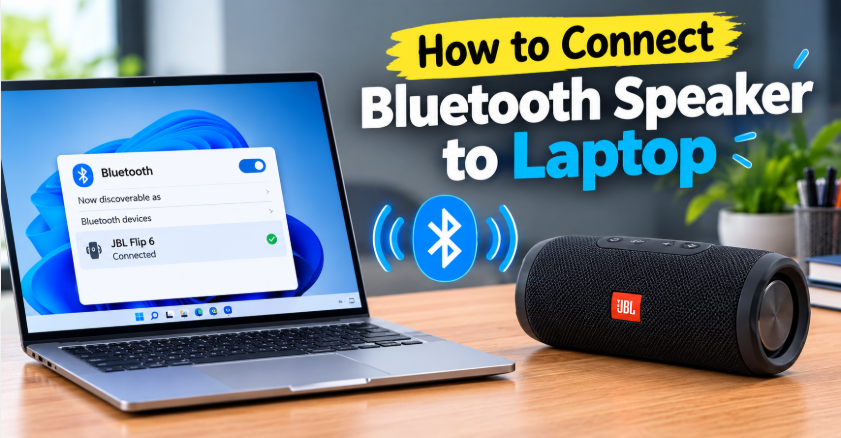
Quick answer: How to connect Bluetooth speaker to laptop? Put the speaker in pairing mode (hold its Bluetooth button until the light blinks), then on Windows go to Settings → Bluetooth & devices → Add device and select your speaker. On a Mac, open System Settings → Bluetooth and click Connect next to the speaker’s name. Then set the speaker as your sound output — that last step is the one most people miss.
Laptop speakers are famously weak. Dialogue in a movie turns into mumbling, music sounds like it is playing inside a tin can, and on a video call the other person’s voice barely fills the room. The fix takes about two minutes and you probably already own it: that Bluetooth speaker sitting on your shelf. The catch is that Windows and Mac hide the steps in slightly different places, and half the guides out there stop at “paired” — right before the part where no sound actually comes out.
This is the complete guide on how to connect Bluetooth speaker to laptop, for Windows 11, Windows 10 and Mac, including the no-sound fix, the lag fix, and what to do if your laptop has no Bluetooth at all.
Before You Start: 3 Quick Checks
Thirty seconds of checking now saves ten minutes of head-scratching later:
- Charge the speaker. Many speakers refuse to enter pairing mode on a nearly dead battery, or connect and then drop within minutes. If the battery light is red, plug it in first.
- Turn off airplane mode. Airplane mode switches Bluetooth off completely. On Windows it hides in the Quick Settings panel; on a Mac, check that the Bluetooth icon is blue, not grey.
- Disconnect it from your phone. Most speakers connect to one device at a time. If your speaker auto-connects to your phone the moment you switch it on, turn your phone’s Bluetooth off for a minute so the speaker is free to pair with the laptop.
How to Connect Bluetooth Speaker to Laptop on Windows 11
Windows 11 puts everything in the Settings app. Here is the exact path:
- Switch the speaker on and hold its Bluetooth (or power) button until the light starts blinking — that blinking light means “pairing mode,” and it only lasts a minute or two, so do the next steps promptly.
- On the laptop, open Settings → Bluetooth & devices and make sure the Bluetooth toggle is on.
- Click Add device → Bluetooth. Your speaker’s name appears in the list within a few seconds.
- Click the speaker’s name and wait for the “Connected” status, or a confirmation tone from the speaker itself.
There is also a shortcut for next time: press the network/volume icons in the taskbar corner (or Win + A), and the Quick Settings panel lets you toggle Bluetooth and reconnect a paired speaker in two clicks — no Settings digging.
How to Connect Bluetooth Speaker to Laptop on Windows 10
Windows 10 works the same way; the menus just wear different labels:
- Put the speaker in pairing mode (blinking light, as above).
- Open Settings → Devices → Bluetooth & other devices and turn Bluetooth on.
- Click Add Bluetooth or other device → Bluetooth.
- Select your speaker from the list and wait for the “Your device is ready to go” message.
If the speaker paired earlier but will not reconnect, click its name under Audio, choose Remove device, and pair it again from scratch. A fresh pairing clears out most stubborn connection problems on both Windows versions.
How to Connect Bluetooth Speaker to Laptop on a Mac
On macOS the steps are shorter, but there is one extra click people miss at the end:
- Put the speaker in pairing mode.
- Open the Apple menu → System Settings → Bluetooth (on older macOS it is System Preferences → Bluetooth) and confirm Bluetooth is on.
- Find your speaker under “Nearby Devices” and click Connect. It moves up to “My Devices” once paired.
- Now the missed step: go to System Settings → Sound → Output and select the speaker. Pairing alone does not always switch the sound over.
For daily use, add Bluetooth and Sound to the menu bar (System Settings → Control Center). After the first pairing, reconnecting is a two-click job from there.
Connected but No Sound? Set the Speaker as Your Output
This is the number one problem with this whole topic: Windows or Mac says “Connected,” the speaker even beeps — and the movie keeps playing through the laptop’s own speakers. Pairing and playing are two different things. The laptop is connected to the speaker but still sending sound to its built-in speakers.
The fix takes twenty seconds. On Windows, click the volume icon in the taskbar, click the arrow (or the device name) next to the volume slider, and choose your Bluetooth speaker from the output list. On a Mac, hold the Option key and click the Sound icon in the menu bar, then pick the speaker — or use System Settings → Sound → Output. Restart the app that was playing (browser tab, media player, Zoom) if it still clings to the old output; some apps only check the output device when they start.
Video call coming up? Check the app’s own settings too — Zoom, Teams and Meet each have a speaker dropdown inside the app, and it does not always follow the system setting.
5 Common Laptop Bluetooth Speaker Problems (and Fixes)
1. The speaker does not show up in the list
It is almost never in pairing mode — a solid light means “connected to something else,” a blinking light means “ready to pair.” Hold the Bluetooth button longer, move the speaker within a metre of the laptop for the first pairing, and check it is not still connected to your phone.
2. It says “Paired” but not “Connected”
Remove the speaker from the Bluetooth list entirely and pair it fresh. On Windows this is Remove device; on a Mac, right-click the speaker and choose Forget. Nine times out of ten, a clean pairing fixes it.
3. The sound lags behind the video
Standard Bluetooth audio carries a small delay — usually 100–300 milliseconds — which you never notice with music but absolutely notice when lips move before words arrive. Some players (like VLC) let you shift the audio track to match. For regular video calls and movies it is rarely an issue; for gaming or video editing, use a cable instead. Our guide on Bluetooth speaker sound delay explains the causes and fixes in depth.
4. The sound keeps cutting out
Distance and obstacles, mostly. Bluetooth’s real-world range is about 30 feet in the open and much less through walls and metal desks. Keep a clear-ish path between laptop and speaker, and keep the laptop plugged into Wi-Fi on the 5 GHz band if you can — crowded 2.4 GHz signals compete with Bluetooth. Where you put the speaker matters here too; our speaker placement guide covers the spots that keep both sound and signal strong.
5. The speaker connects, then the volume is tiny
Two volume controls are fighting: the laptop’s and the speaker’s own buttons. Turn the laptop volume to about 80%, then adjust with the speaker’s buttons. Also check the app volume (YouTube, Spotify and Zoom all have their own sliders). If it is still whisper-quiet everywhere, our fixes for a Bluetooth speaker that sounds too quiet go deeper.
No Bluetooth on Your Laptop? 2 Easy Workarounds
Older laptops sometimes have no Bluetooth at all, or a Bluetooth chip so old it will not talk to modern speakers. You still have two cheap options:
- A USB Bluetooth adapter. A small plug-in dongle (Bluetooth 5.0 or newer) adds full Bluetooth to almost any Windows laptop in minutes — plug it in, let Windows install it, then follow the Windows steps above. Buy one that names your Windows version on the box and the pairing process is painless.
- An AUX cable. If the speaker has a 3.5mm input and the laptop has a headphone jack, a plain aux cable just works — no pairing, no settings, and zero audio lag, which makes it the better choice for gaming and editing anyway. It is the same trick that rescues older TVs in our guide to connecting a Bluetooth speaker to a TV, and it works on laptops for exactly the same reason.
Make It a Movie Night: Two Speakers, One Laptop
Once one speaker is connected, a fair question follows: can the laptop play through two at once? Some laptops and phones support dual audio, and many speaker brands offer stereo pairing inside their own apps. The honest short answer is “sometimes — it depends on the brand.” Our guide to connecting two Bluetooth speakers together walks through TWS, PartyBoost and stereo pairing properly. And if movie night moves outside with a projector later, the same speaker pairs with that too — here is how to connect a Bluetooth speaker to a projector.
The Bottom Line
Still unsure how to connect Bluetooth speaker to laptop? Remember the order: pairing mode first (blinking light), then Settings → Bluetooth → Add device, then — the step everyone forgets — set the speaker as your sound output. Do those three things and any Windows 11, Windows 10 or Mac laptop connects in about two minutes. After that it is one click to reconnect forever. And if you are still shopping for the speaker itself, our roundup of the best outdoor party speakers covers models that pair just as happily with a laptop for movie night as they do with a phone at a barbecue.
FAQs: Connecting a Bluetooth Speaker to a Laptop
Why is my Bluetooth speaker connected but no sound is coming out?
Because the laptop is still using its built-in speakers as the output. Click the volume icon (Windows) or Option-click the Sound icon (Mac) and select the Bluetooth speaker as the output device. Then restart the app that is playing — some apps only detect the output when they open.
Can I connect a Bluetooth speaker to a laptop without Bluetooth?
Yes, two ways: a USB Bluetooth adapter (a small dongle that adds Bluetooth to the laptop) or a plain 3.5mm AUX cable between the laptop’s headphone jack and the speaker’s aux input. The cable also has zero lag, which is better for gaming.
How do I connect a Bluetooth speaker to a Windows 11 laptop?
Put the speaker in pairing mode, then open Settings → Bluetooth & devices, turn Bluetooth on, click Add device → Bluetooth, and select your speaker. Afterwards, check the volume icon in the taskbar to confirm the speaker is the selected output.
Why does my speaker not show up on my laptop?
Usually it is not in pairing mode (you need the blinking light, not a solid one) or it is still connected to your phone. Turn the phone’s Bluetooth off, hold the speaker’s Bluetooth button until it blinks, keep it close to the laptop, and scan again.
Can I connect two Bluetooth speakers to one laptop?
Sometimes. Some systems support dual audio, and many brands offer stereo pairing through their own app or TWS pairing between two speakers of the same model. If yours does not, pairing the speakers to each other first (where supported) and then to the laptop is the usual workaround.
Does Bluetooth speaker audio lag on a laptop?
A little, yes — standard Bluetooth adds roughly 100–300ms of delay. It is unnoticeable for music and fine for most videos and calls, but gamers and video editors will feel it. For zero lag, use an AUX cable or a speaker and laptop that both support a low-latency codec like aptX Low Latency.
1 thought on “How to Connect Bluetooth Speaker to Laptop: Windows & Mac Guide”